How to Track Period Cycle

Record from Calendar

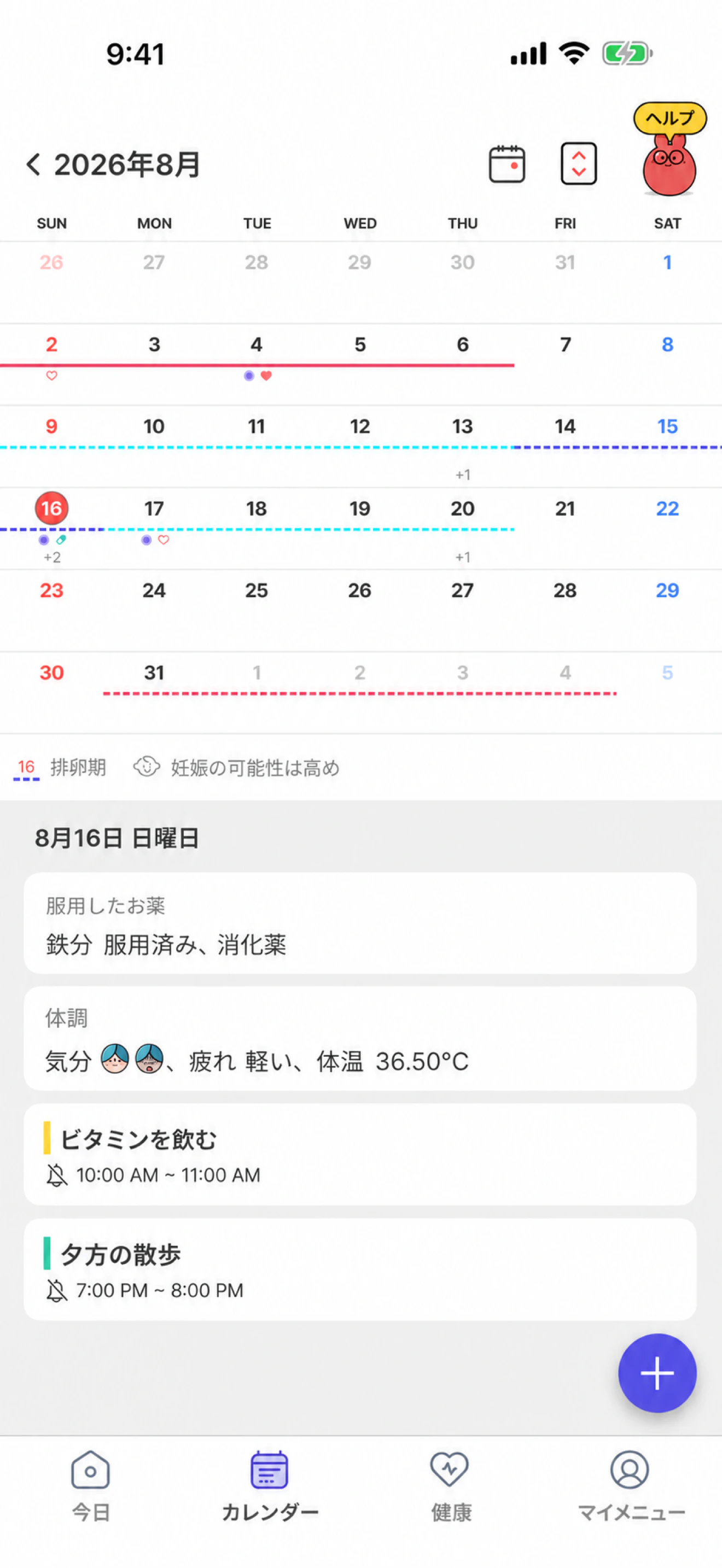
Open the ‘Calendar’ tab, select the date you want to record, and tap the + button in the lower-right corner.

Calendar with a selected date and the + button in the lower-right corner

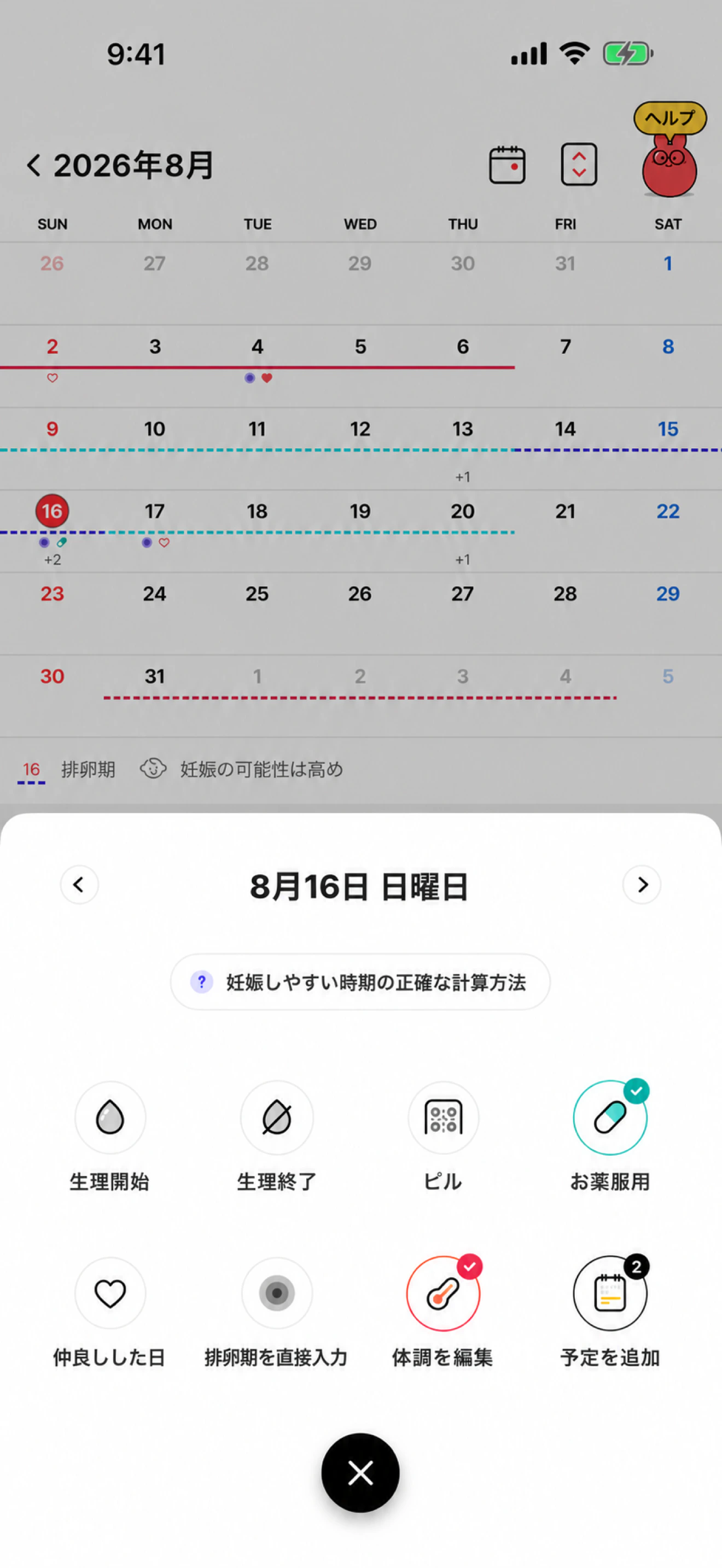
On the first day of your period, tap ‘Period start’. The end date is created automatically based on your average period length.

Record menu showing Period start and Period end

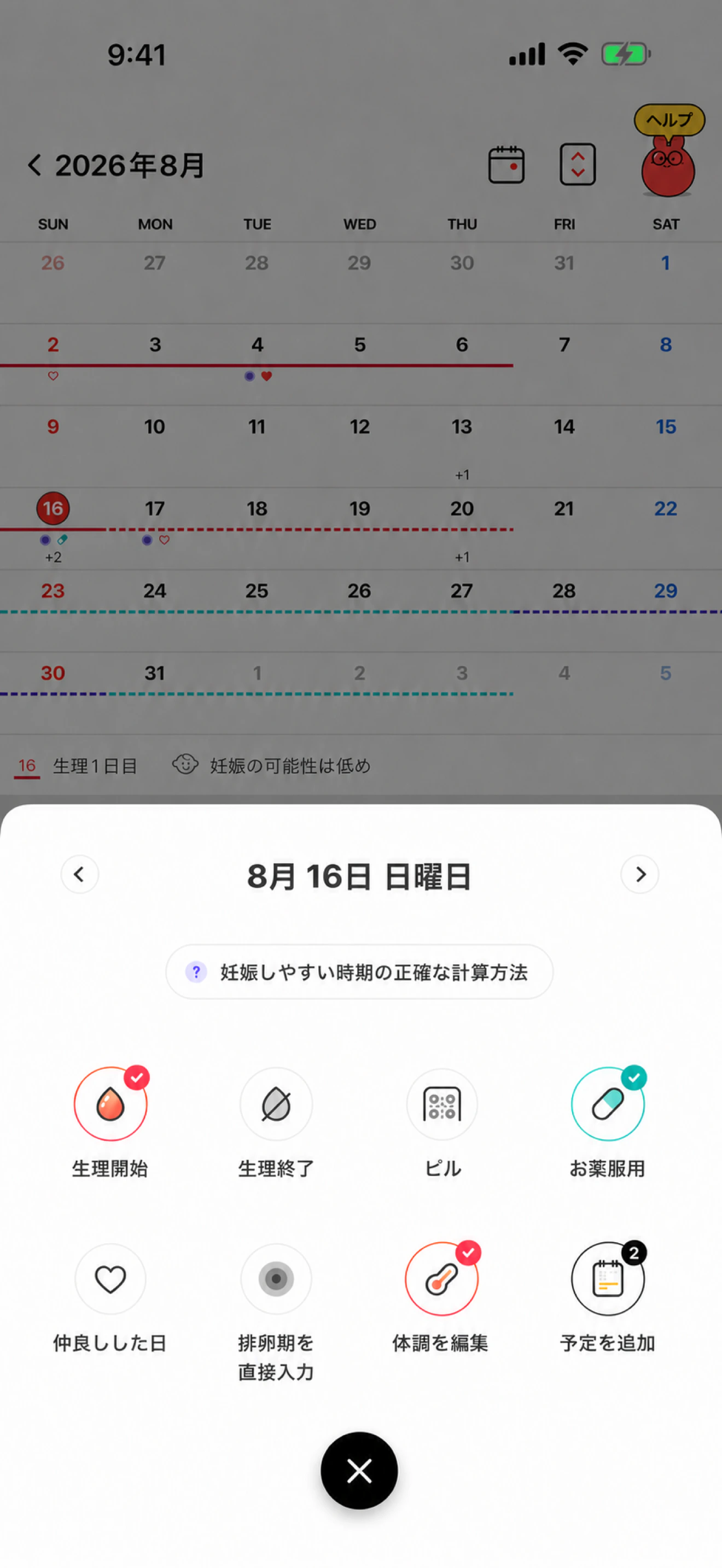
Select the start date of an existing period, then tap the active ‘Period start’ item again to open the delete confirmation. Tap ‘Delete’ to delete the entire period range, or tap ‘Cancel’ to keep the record unchanged.

Record menu with Period start shown as active

To change an existing end date, select the end date you want, tap the + button, and then tap ‘Period end’. The existing end date changes to the selected date. Depending on adjacent records, a confirmation asking whether to connect this range to the previous period may appear. Confirm to connect the ranges, or tap ‘Cancel’ so the end date is not changed.

Add or edit a period from Health

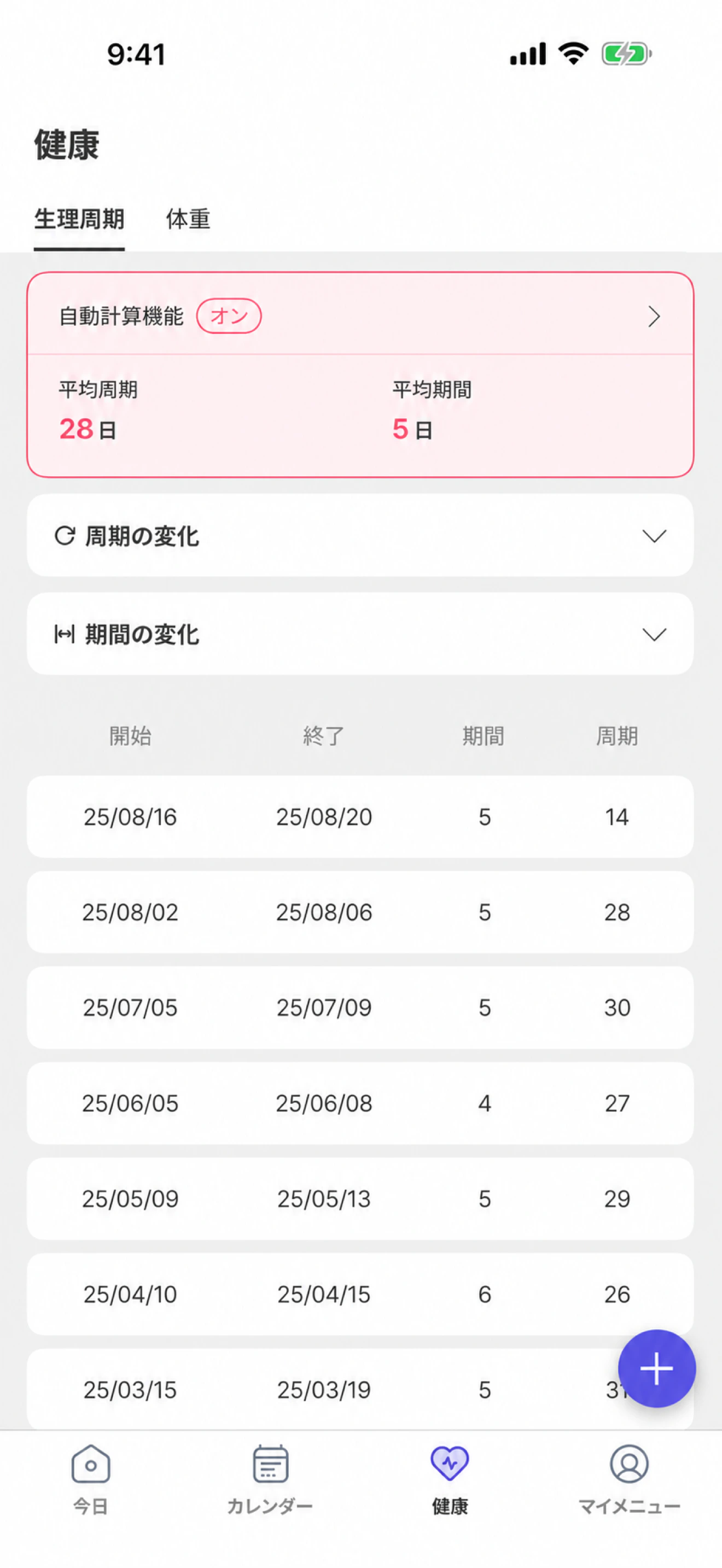
Open the ‘Health’ tab and select ‘Period’ at the top to see your recorded period ranges.

Period records in the Health tab

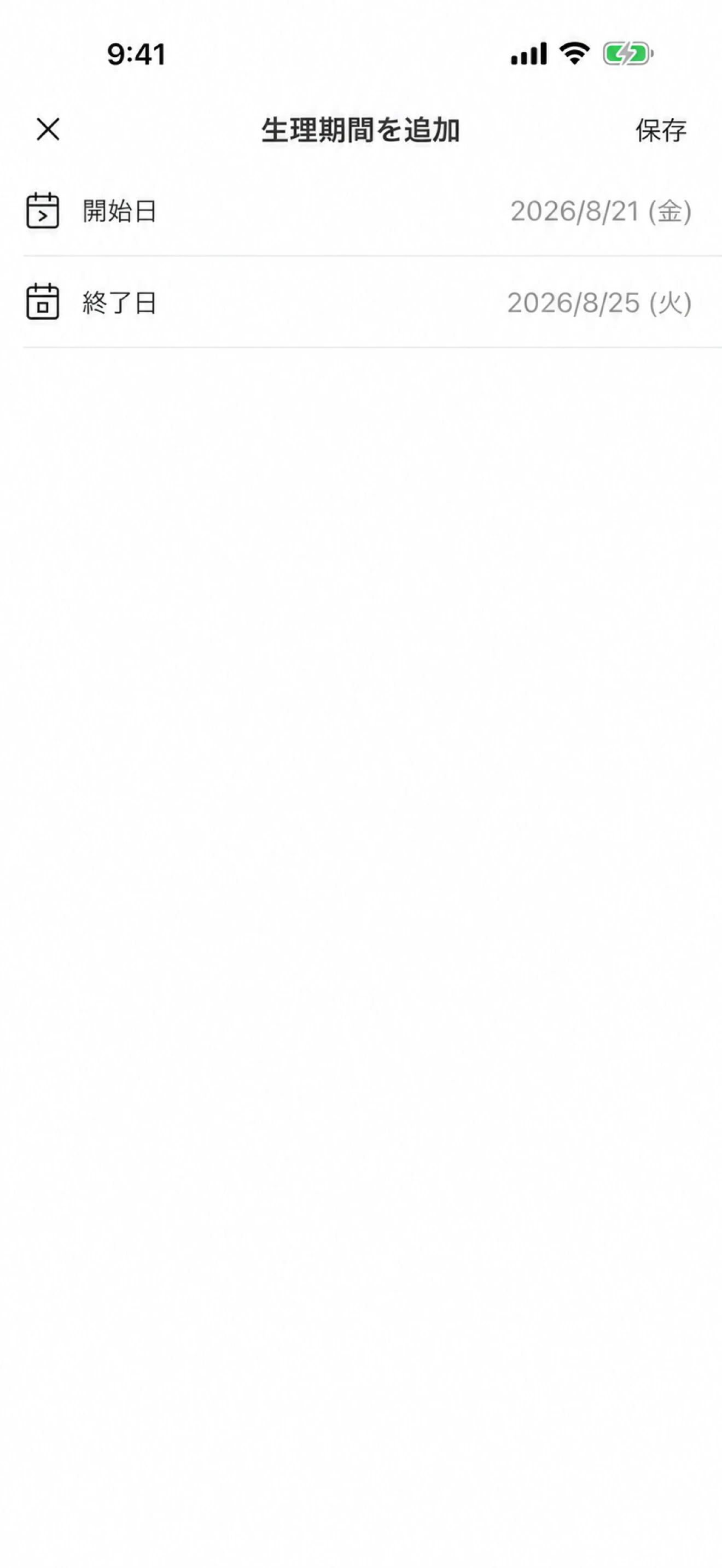
To add a new range, tap the + button in the lower-right corner. On ‘Add period’, choose the start and end dates, then tap ‘Save’.

Add period screen with start and end dates

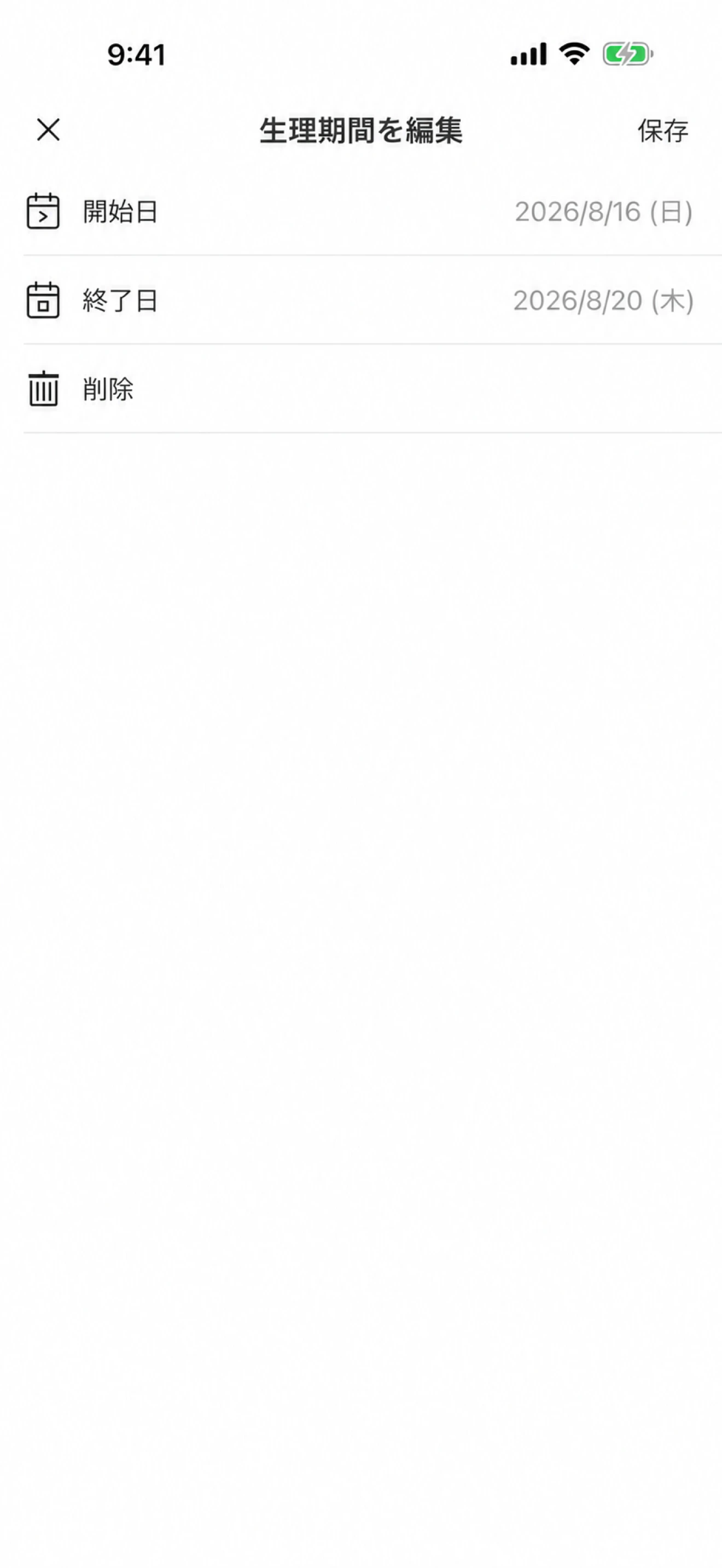
To change an existing range, tap it in the Period list. On ‘Edit period’, update the start or end date and save, or tap ‘Delete’ to remove the entire range.

Edit period screen with start date, end date, and Delete