Back up on iOS

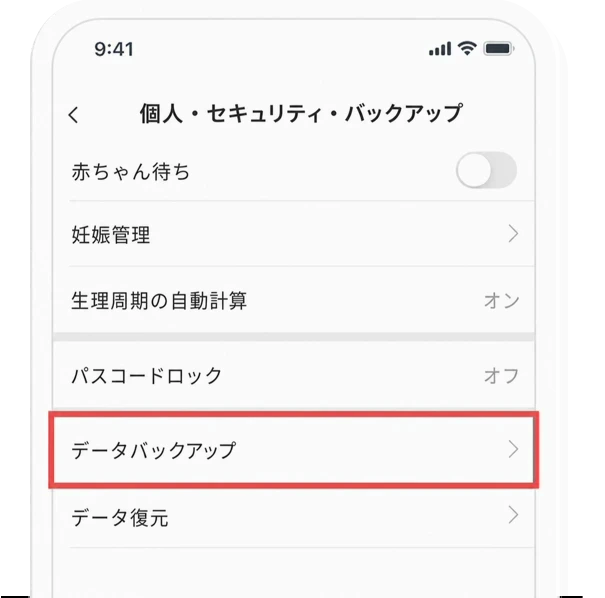
In the Bom Calendar Settings > ‘Personal/Security/Backup’, please select ‘Data Backup’.

iOS data backup, step 1

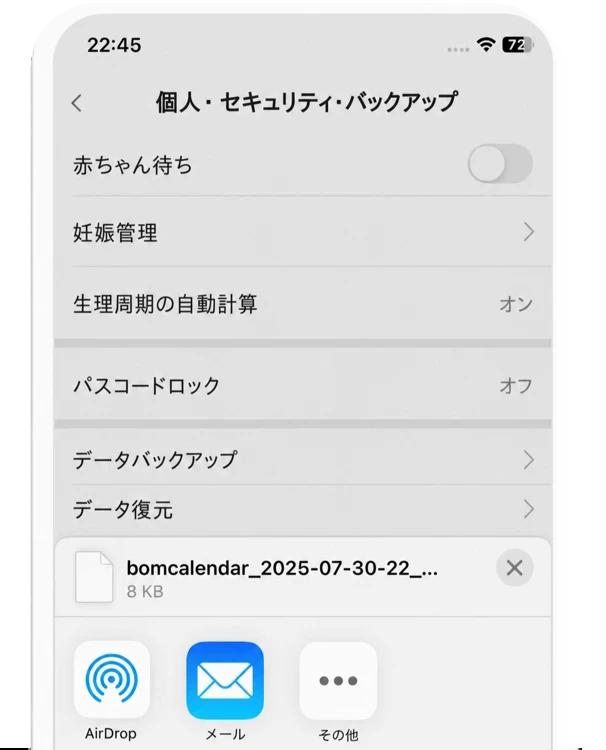
Please choose the application or the email to send out the back up.

iOS data backup, step 2

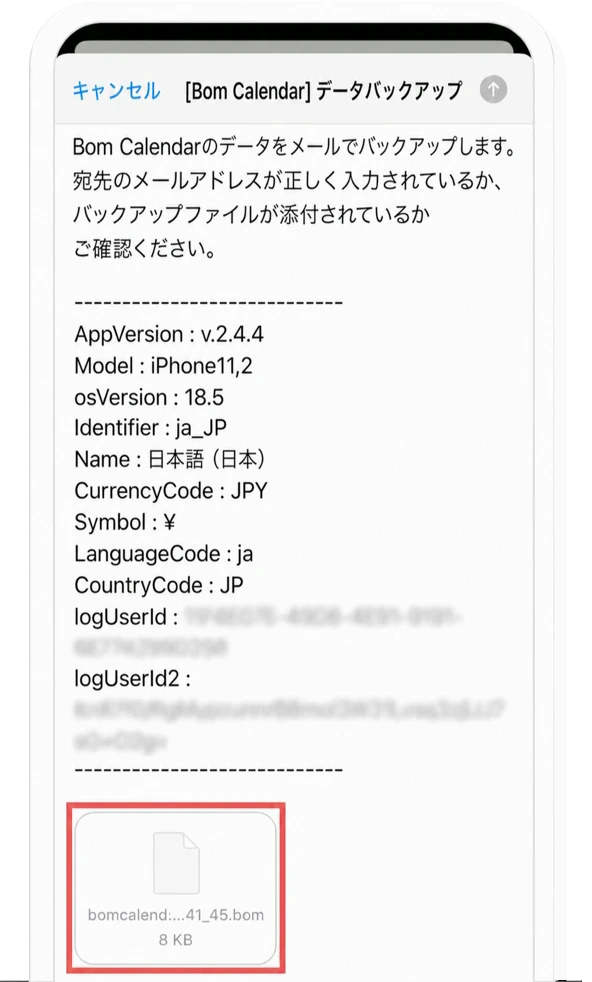
A. When backing up data to email

Please check whether back up data is attached to the email if you want to back up to email. Once you enter the email address to be backed up to the recipient, select ‘Send’. The back up data file is saved to incoming mail as the email is sent.

iOS data backup, step 3

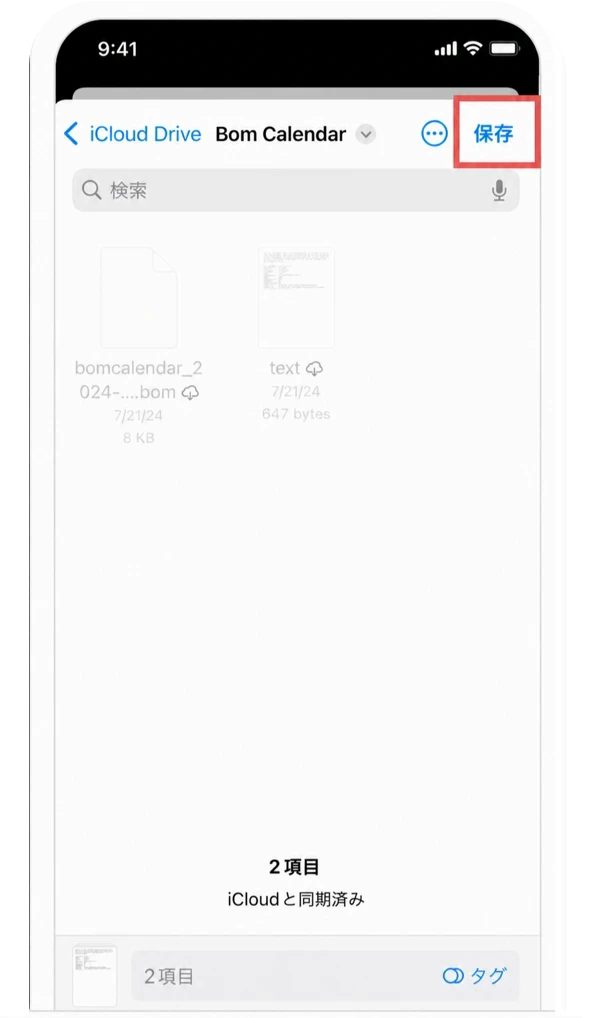
B. When backing up data to the cloud

If you want to back up to Cloud, check whether the account and location to be saved are correct and select ‘Save(Upload)’. Once you select ‘Save(Upload)’, the backup data file is saved to Cloud.

iOS data backup, step 4